A single window that tells you what your connection is actually doing, and a background engine that fixes it when it goes wrong.
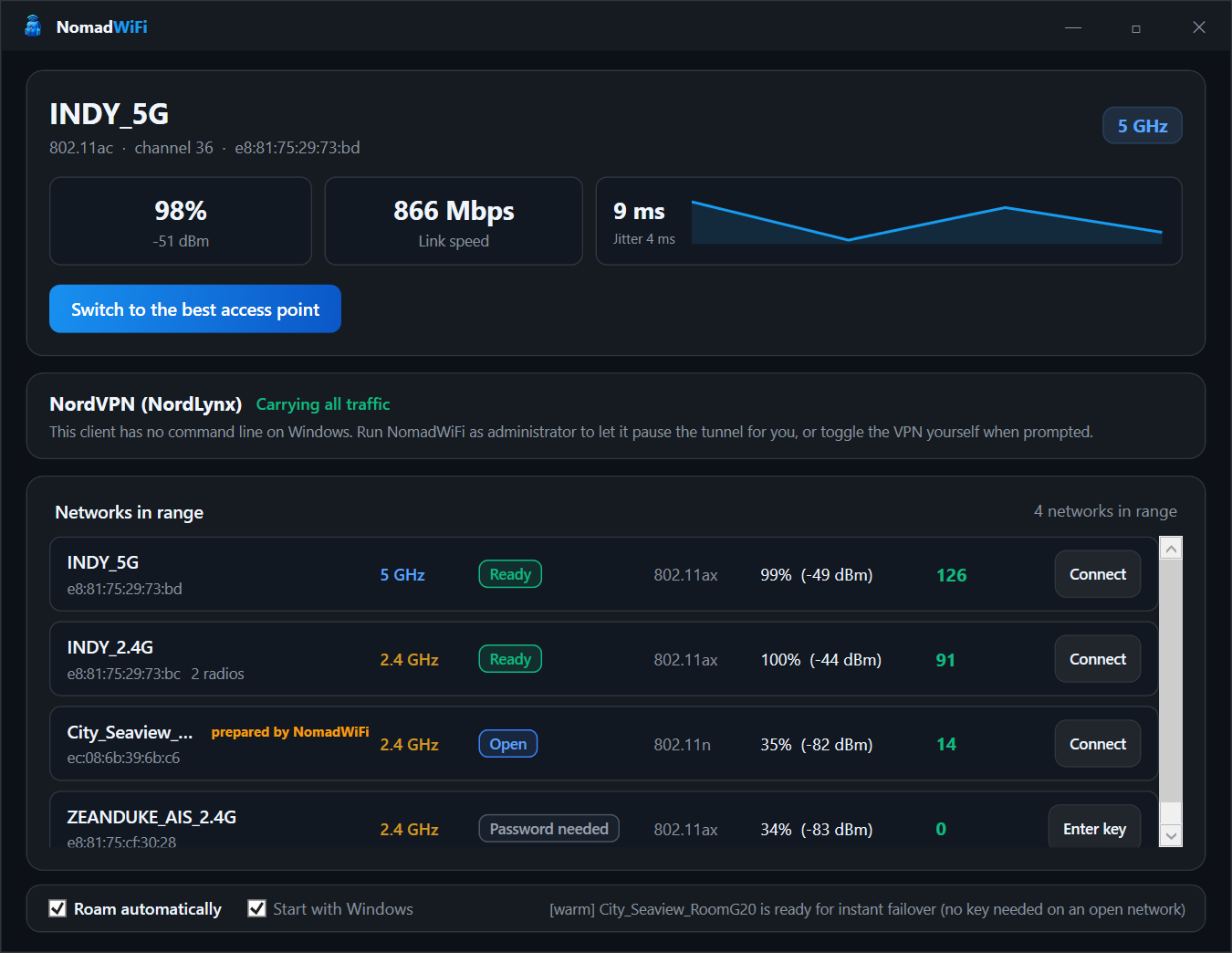
Three cards, top to bottom.
The network you are on, its access point, band, channel and 802.11 standard, then three live
measurements: signal (percentage and the dBm it came from), negotiated link speed, and gateway
latency with a rolling graph and jitter. Switch to the best access point runs
one roam immediately — the same thing nomadwifi optimize does.
Which tunnel is up, whether it carries all your traffic, and whether NomadWiFi can pause it for you. When a client offers no way to be controlled the card says so and tells you what to do instead, rather than pretending. See VPN & captive portals.
Every network the adapter can see, best first.
| Column | Meaning |
|---|---|
| Name | The SSID, with its access point address underneath. 2 radios means several access points share this name and NomadWiFi will pick between them. |
| prepared by NomadWiFi | A Windows profile already exists because NomadWiFi worked out the key from a sibling network, so switching here is immediate. |
| Band | 2.4 GHz, 5 GHz or 6 GHz, from the access point's centre frequency. |
| Badge | Ready — Windows can connect now. Open — no key needed. Venue key — the key was inferred from a sibling. Password needed — you will be asked. |
| Standard | The 802.11 generation the radio advertises. |
| Signal | Percentage with the measured dBm in brackets. |
| Score | The overall ranking. Hover the row to see what produced it. |
Connect joins that network. If a key is needed and NomadWiFi cannot infer one, it asks in a dialog inside the window — not the Windows flyout — and rolls the profile back if the key is wrong.
Roam automatically in the footer hands the decision to the engine. It reacts to a disconnect the instant the wireless service reports one, and otherwise moves only on sustained degradation or a clearly better neighbour — never on a single bad sample. Every switch is verified and rolled back if the new access point does not carry traffic. The thresholds and the reasoning are described in how roaming decides.
The tray icon is tinted by what the connection is doing, so a glance is enough.
| State | Means |
|---|---|
| Good | Connected on a fast band with healthy latency. |
| Slow | Connected, but the link is weak or the channel is congested. A roam may be coming. |
| Roaming | A switch is in progress. |
| VPN held | The tunnel is paused around a roam or a portal sign-in. It will be resumed. |
| Offline | No association, or the link carries no traffic. |
The Start with Windows checkbox writes a single value under
HKCU\Software\Microsoft\Windows\CurrentVersion\Run. It is per-user, needs no
elevation, installs no service, and unchecking it removes the value.
NomadWiFi checks for a new release at most once a day. When one exists, a banner appears at the top of the window — “NomadWiFi 1.4.0 is available. You have 1.3.0.” — with an Install now button.
Installing downloads the signed installer, verifies it against the published SHA-256 digest before running it, and hands over. The installer closes the app to replace its files and starts it again afterwards, minimised to the tray as it was.
Dismissing the banner silences that one version, and the decision is remembered across restarts. A later release will ask again. Nothing is ever installed without you clicking.
When the gateway answers but the internet does not, NomadWiFi checks for a sign-in page and says so instead of blaming the access point — and it does not roam away, because a portal is not a bad access point.
If a VPN tunnel is up at the same time, the portal cannot load through it at all. NomadWiFi offers Pause VPN and sign in: it holds the tunnel, opens the portal, and resumes the tunnel once you are through. For clients it cannot control it gives you the sequence to do by hand, with the reason.
NomadWiFi\
  nomadwifi.exe          # the app you run
  core\nomadwifi.exe     # the engine it drives
cli\
  nomadwifi.exe          # the standalone command line tool
Both are called nomadwifi.exe deliberately — the app should not be named
something else in the taskbar just because a CLI shares the project. They are kept in separate
folders because of it, and the app refuses any engine path that resolves to itself.
The app talks to the engine over one long-lived pipe of newline-delimited JSON rather than spawning a process per refresh, which is what lets the engine push a roam or a drop to the window the moment it happens. The protocol is sketched in the CLI reference.