
Your laptop is stuck on the worst access point in the building.
Windows clings to the first radio it associated with. You walk to the far end of the cafe, the signal drops to −80 dBm, and it still will not move — while a 5 GHz access point two metres away sits idle. NomadWiFi measures every access point in range and moves you to the one that is actually good, then keeps you there.
Signed installer, no administrator rights needed. Or with a package manager:
winget install mory-dev.NomadWiFi
· all releases
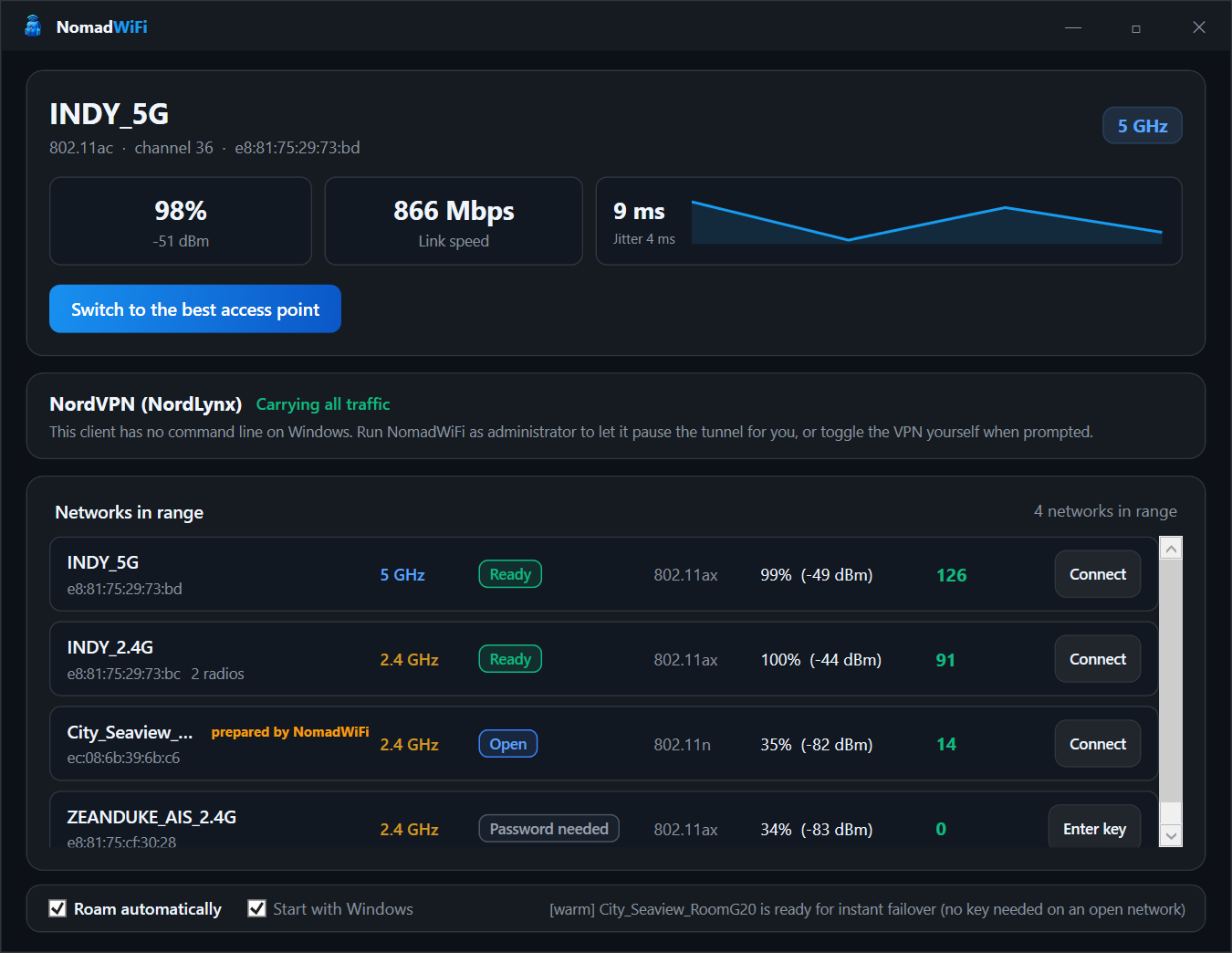
What it actually does
No driver patches, no registry surgery, no third-party service. NomadWiFi talks to the Windows Native Wifi API directly and makes the roaming decisions Windows will not make for you.
Honest signal ranking
Windows reports the access point you are joined to at ~99% link quality no matter its real strength, which is why the incumbent always wins. NomadWiFi scores every radio from its measured RSSI, band, standard and airtime congestion, so the comparison is fair.
Recovers when the link drops
It subscribes to the wireless service's own disconnect notifications instead of polling, so a drop is noticed in roughly a hundred milliseconds and the next candidate is already chosen. If the new access point fails to carry traffic, it rolls back.
Prepares the venue in advance
Hotels publish the same key across Lobby, _5G and
Floor2. NomadWiFi works out which networks belong to the venue, writes the
profiles before you need them, and deletes the guesses that turn out to be wrong.
Works with your VPN
It holds the tunnel for the moment of the switch, checks the new link really carries traffic, resumes the tunnel and flushes DNS — the off-and-on-again dance, done for you. How that works →
Understands captive portals
A hotel sign-in page cannot load through a VPN. NomadWiFi says so plainly, offers one click to pause the tunnel, and does not mistake “not signed in yet” for a bad access point.
No elevation required
Profiles are written per-user, so scanning, connecting, warming and roaming all work as a normal account. Administrator rights are only ever asked for to pause a VPN client that has no command line.
Or drive it from the terminal
The same engine ships as a single self-contained executable. Every command takes
--json, so it scripts cleanly.
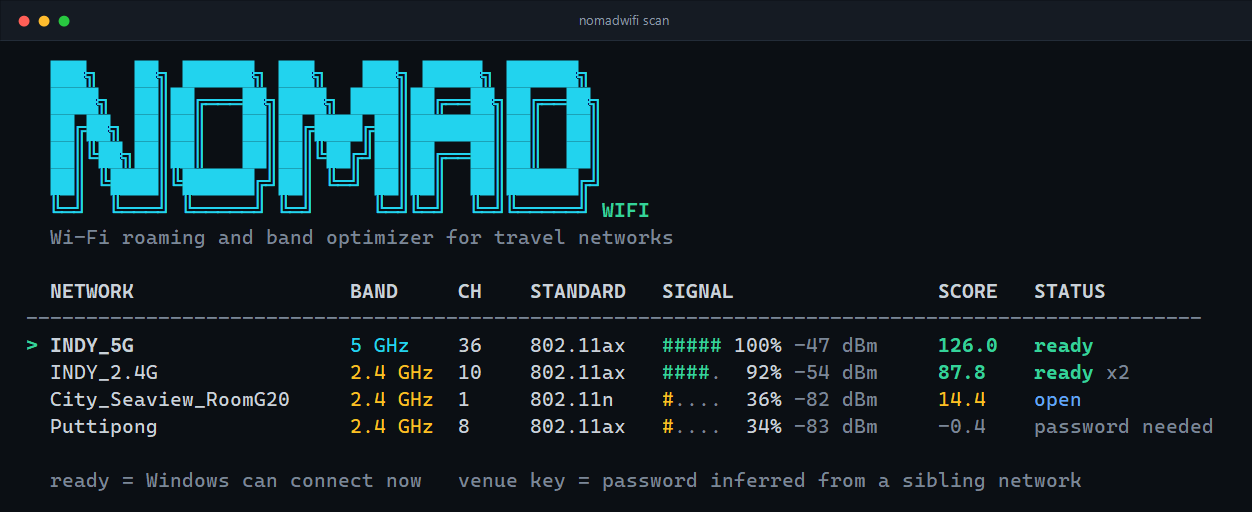
nomadwifi scan — every network in range, ranked, with the reason it scored where it did.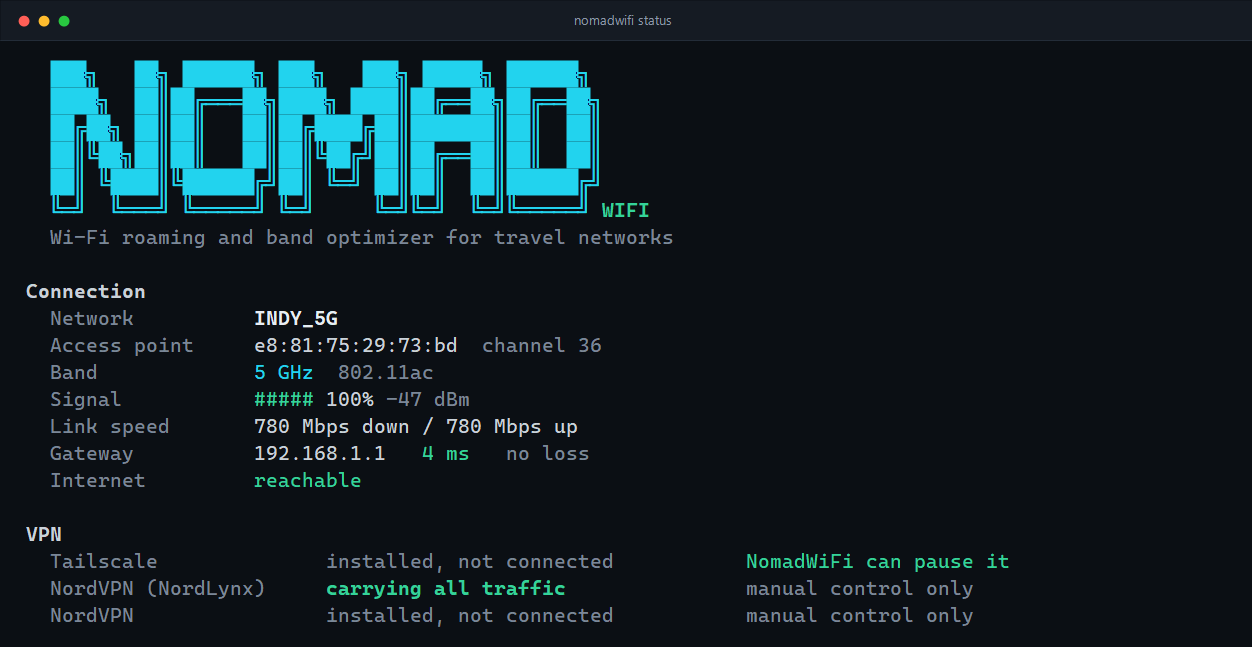
nomadwifi status — link health and VPN state at a glance.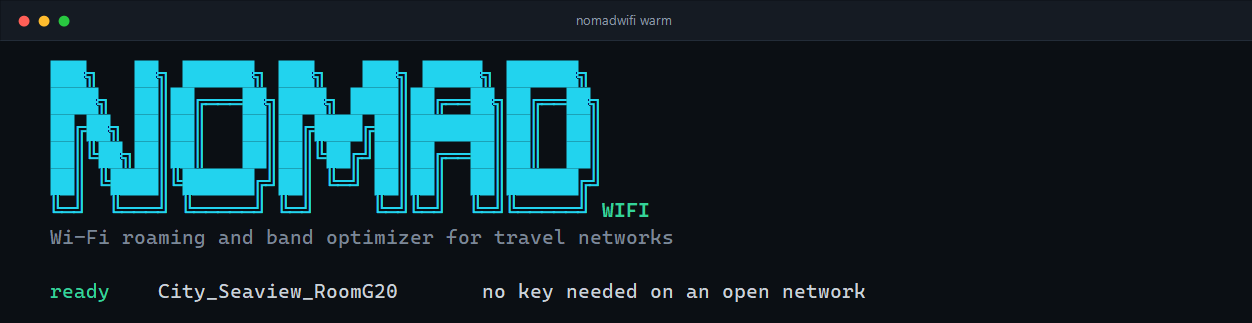
nomadwifi warm — prepare the venue's networks before you need them.Common questions
Why does Windows stay on a weak 2.4 GHz access point?
Two reasons. Windows only roams when the current association is close to unusable, and the driver reports the connected radio at around 99% link quality regardless of its real signal — so the access point you are already on always looks like the best one available. NomadWiFi scores every access point from measured RSSI, which puts them all on the same scale.
Can I force Windows onto the 5 GHz band?
Most adapters have a Preferred Band driver setting, but it is a hint, and it does nothing when the venue publishes one SSID across both bands. NomadWiFi connects to a specific access point rather than a network name, so it can move you onto the 5 GHz or 6 GHz radio of the same network and keep you there.
Why does joining Wi-Fi break while the VPN is on?
The tunnel holds the default route and the DNS configuration while the Wi-Fi link underneath it changes, so the new network is never properly reached — and a captive portal cannot load through the tunnel at all. Turning the VPN off and on again fixes it because that rebuilds the route. NomadWiFi does that for you, at the right moment. The long version →
Does it need administrator rights?
No. Scanning, ranking, connecting, preparing profiles and roaming all work as a normal user. Elevation is only needed to pause a VPN client that offers no command line of its own, and NomadWiFi tells you when that is the case instead of failing quietly.